1 Save the Truio Icon
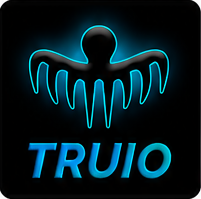
Press and hold this image and save it to Photos.
You'll use this icon in a later step.
Get Truio on your Home Screen using the iOS Shortcut method.
Note: this tutorial is functional if viewing from your iPhone.
Tip: This guide will remain open in Safari while you install the Shortcut.
You can switch back to Safari at any time if you need to review a step.
Press and hold this image and save it to Photos.
You'll use this icon in a later step.
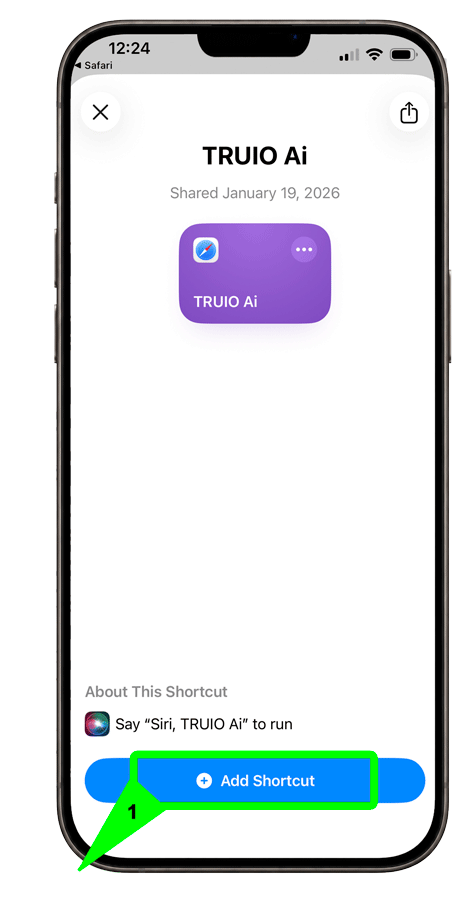
After tapping Get Started, tap Add Shortcut.
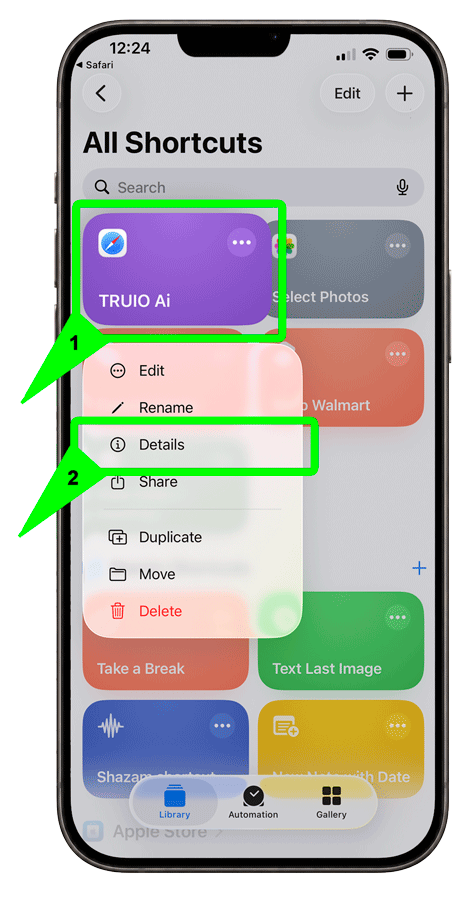
Press and hold the TRUIO Ai Shortcut, then tap Details.
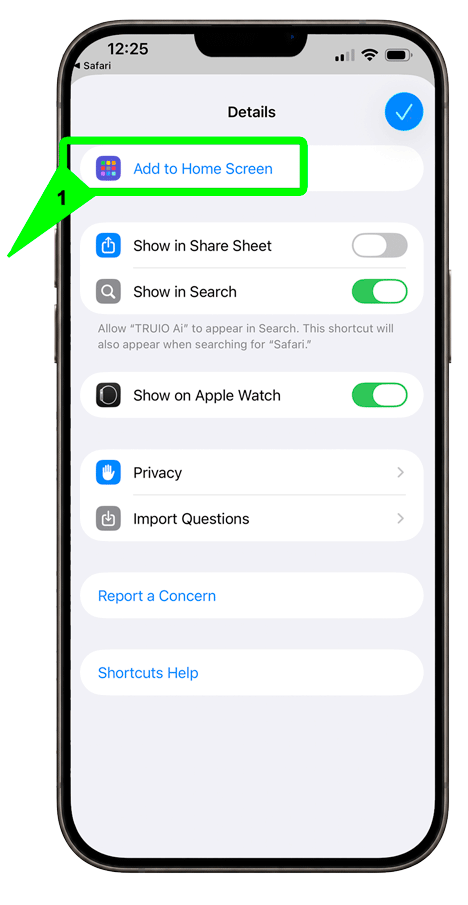
Tap Add to Home Screen.
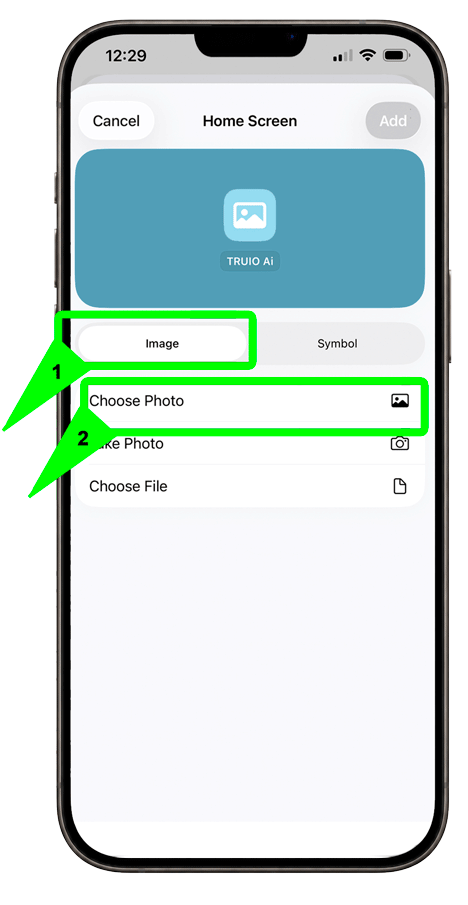
Tap Image, then tap Choose Photo.
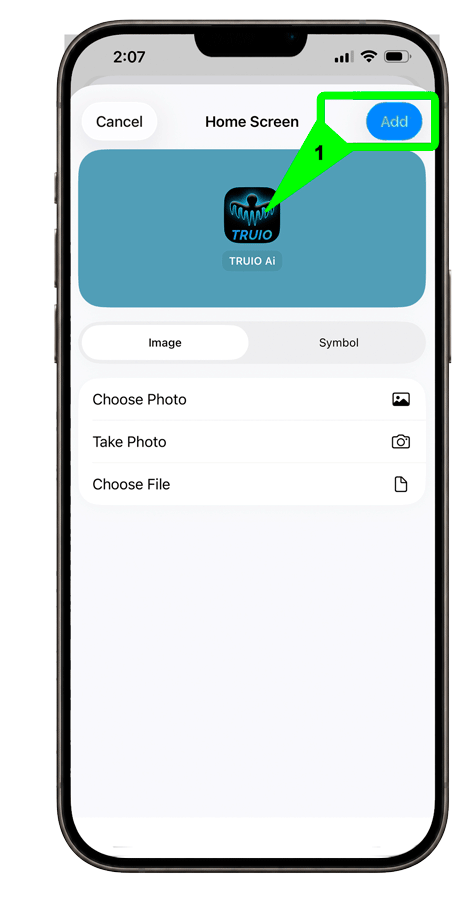
Tap Add. Truio will now appear on your Home Screen.
When you tap Get Started below, you'll leave this page and open the TRUIO Ai install page in Apple Shortcuts.
Get StartedNeed help? Contact our support team.